

Trying to Search in QuickBooks Online
December 30, 2025If you’re wondering how to search in QuickBooks Online, you’re not alone. While it’s easy to search the internet for answers, finding specific transactions, vendors, or amounts inside QuickBooks Online can require a few extra steps. Fortunately, using the basic and advanced search tools makes it much easier to quickly locate what you need.
How to Search in QuickBooks Online Using the Basic Search Tool
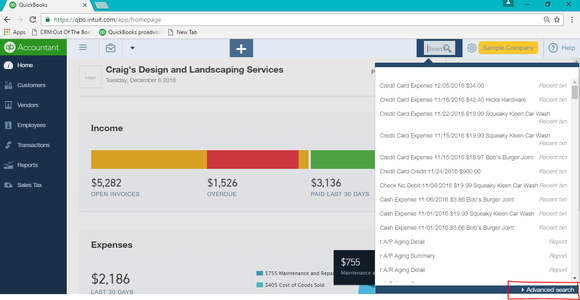
When using the Search function in QuickBooks Online, go to the Home page and click on the magnifying glass at the top of the screen. A search box will appear where you can type in what you’re looking for: date, amount, or transaction number. If you don’t find what you are looking for, click Advanced Search in the bottom right corner of your screen.
How to Use Advanced Search in QuickBooks Online
By clicking on Advanced Search, a new page will appear where you can do more digging and narrow down what you’re looking for.

How to Filter Transactions by Vendor or Amount
Use the buttons alone or in combination to select the type of data you want to find. Consider the following example. Suppose we want to find all transactions related to the vendor Books by Bessie with an amount equal to $75.00. To do this, take the following steps:
- Change Ref Number to Display Name
- Use the arrows to scroll and select the desired vendor from the Names list
- Click the Search button
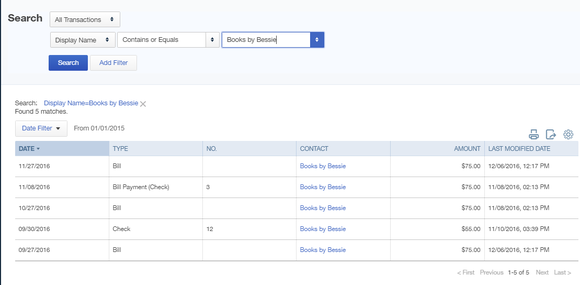
With these results displayed, now change Display Name to Amount (Line or Total), enter 75.00 in the search box, and this time click Add Filter. You now have the results you want.

How to Customize and Export Search Results
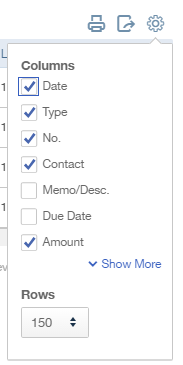
You can even customize these results. Click the small gear icon above the results table and select the columns to display. Then use the icons beside the gear icon to print your results or export the list to Excel.
Get Expert Help with QuickBooks Online
If you’d like more help with QuickBooks Online or need help cleaning up your books, our team is here to help. Contact Siepert & Co., LLP today to get expert support your needs.