

QuickBooks Reconciliation Balance Doesn’t Match Your Bank Statement?
May 18, 2026Several reasons may explain why your QuickBooks reconciliation doesn’t match your bank statement. Ask yourself:
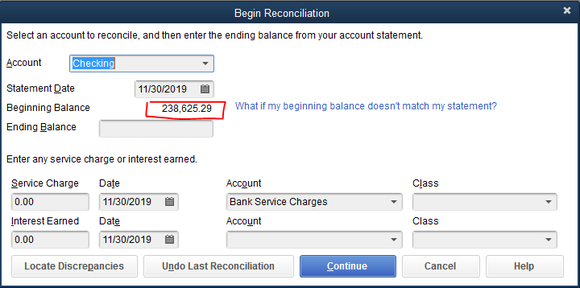
- Is this the first time I have tried to reconcile the account? Did I even enter a balance? Or did I enter the incorrect amount to start?
- Did I void, delete, or change an amount of a previously cleared transaction since I last reconciled?
- Did I accidentally change the status of a cleared transaction while working directly in the checking register?
How to Identify Reconciliation Discrepancies in QuickBooks
Trying to search in QuickBooks Online may feel like you are trying to find a needle in a haystack. Consider the following:
- If this is your first time reconciling the account, try to find the account’s opening balance transaction in the register (usually the first deposit transaction) or look for “Opening Balance Equity” in the Account field of the register. Depending on how your original balances were entered, you may need to correct the dollar amount and date to match your beginning bank balance.
- To help you find a previously cleared transaction that was voided, deleted, or changed, take advantage of some of the tools found under the “Locate Discrepancies” button in the bottom right corner of the “Begin Reconciliation” window (available only in QuickBooks desktop versions Premier and Enterprise).
Helpful Tools to Find Discrepancies
The following tools can help you locate cleared transactions:
- Discrepancy Report: This is often the easiest way to see what happened. Entries that have been modified or deleted will be displayed in their original form.
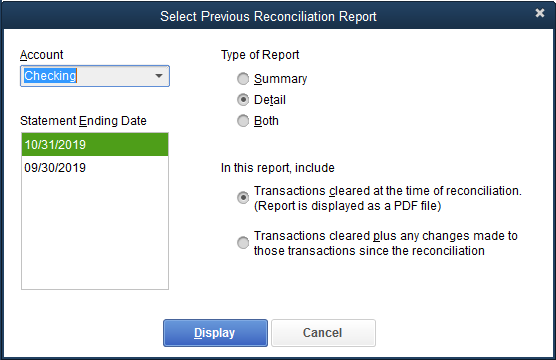
- Previous Reports: Under this option, choose the statement ending date that you wish to research, then choose to view prior reconciliations exactly as they were at the time of reconciliation, and compare them to the alternate reconciliation report that also includes any modifications that have transpired.
How to Fix QuickBooks Reconciliation Issues
You can correct any identified discrepancies by following these steps:
- Enter missing or deleted transactions and re-clear them.
- Edit existing cleared transactions to again match the amount they were at the time of original reconciliation.
- As a last resort, simply undo previous reconciliations until you reach a good beginning balance for that date, and then re-reconcile each month as required.
Get Help with QuickBooks Reconciliation
If this feels overwhelming, you don’t have to learn it on your own. We can help you with this and any other QuickBooks issues you may have. Contact Siepert & Co., LLP for help resolving reconciliation issues and keeping your books accurate.